
Apr 14, 2026 • Adrian T
Edit images using Google Gemini Nano Banana without photoshop
How to Use Gemini Sketch: A Simple Step-by-Step Guide
The Gemini Sketch feature lets you turn simple drawings into high-quality AI images. Here is how to get started using your mobile app.
Getting Started
First, open the Gemini app on your phone and tap "New Chat" at the top left to start a fresh session.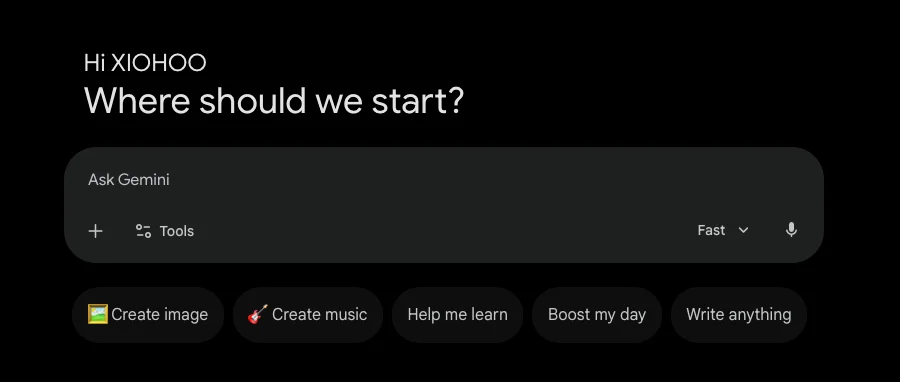
1. Select and Open Your Image
Start by tapping the Plus (+) icon, located in the bottom-left corner, to select a photo from your gallery. After the image is added to your message, tap the image thumbnail to launch the editor.
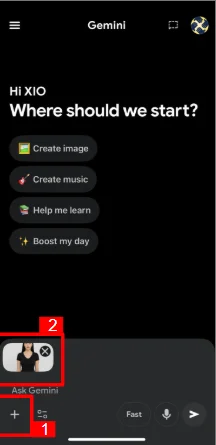
2. Draw Your Ideas with the Sketch Tool
To begin, open the editor and select the Sketch icon from the bottom menu. Choose your preferred color, then draw the basic shape you want to add (simple wings, for instance, are demonstrated here). Once finished, tap Done to complete the step.
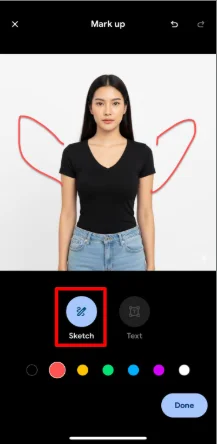
3. Describe Your Creation
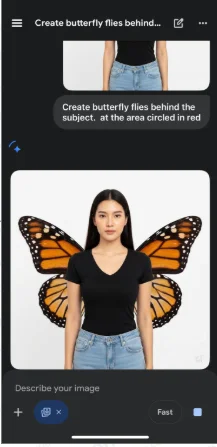
Next, in the prompt box, type a precise description of the change you want to make, such as, "Give her butterfly wings where I sketched them. " After that, simply tap the Send arrow to submit your request to Gemini for processing.
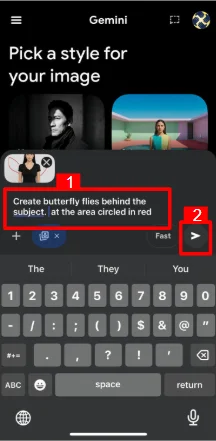
4. View Your Final Result
Gemini will take your rough sketch and your text prompt to generate a polished, final image. You can now save or share your new AI-enhanced photo!
Related Posts

Do Apps Like WhatsApp, Gmail Work in China? How Singapore Travellers Stay Connected

AI Generated Photos and Videos: Safety Tips and New Ideas to Try

Why More Singapore Seniors Are Joining Instagram (and How to Start)

How to Build a Design System for your Business and Brands Using Claude Design

Claude Plugins Explained: What They Are and How to Use Them for Business

Leading Image, Video and Audio Generative AI Companies With Free Tiers and Usage

Leading Generative AI Companies Around the World With Free Tiers and Usage

Deepfake Technology Explained: How It Works, Risks, and the Future of AI
