Jan 31, 2025 Adrian T

Video Editing ON Meitu: Filter and Toning

Image

Do you know use “Filters” and “Toning” tool on Meitu? Here is a step-by-step guide on how to achieve this! In this guide, we will learn the following features:

  1. Filters

  2. Toning

  3. AI Enhancement

  4. Brightness

  5. Contrast

  6. Saturation

  7. Sharpen

  8. Light

1698578658343_filterToning1.jpeg

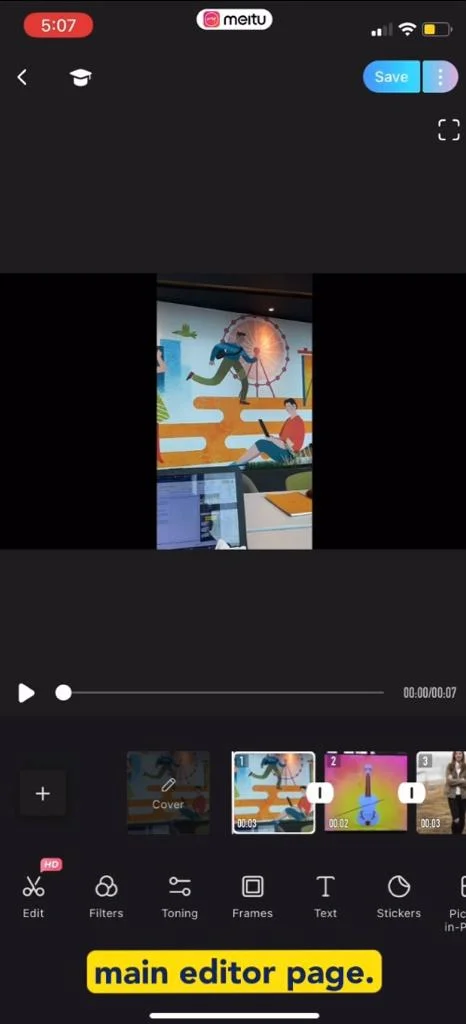
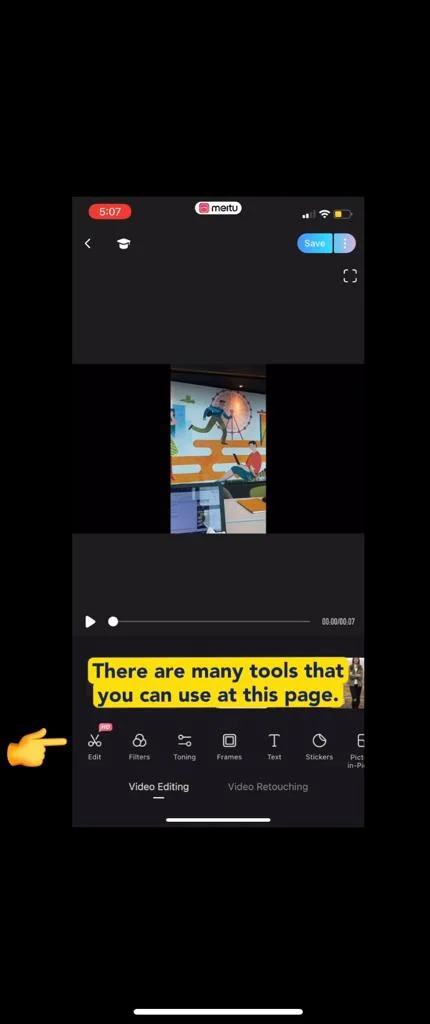
  1. After you have selected your videos/photos and tap “Start”, you will be at the main editor page.
Image

  1. There are many tools that you can use at this page.

1) Filters:
Image

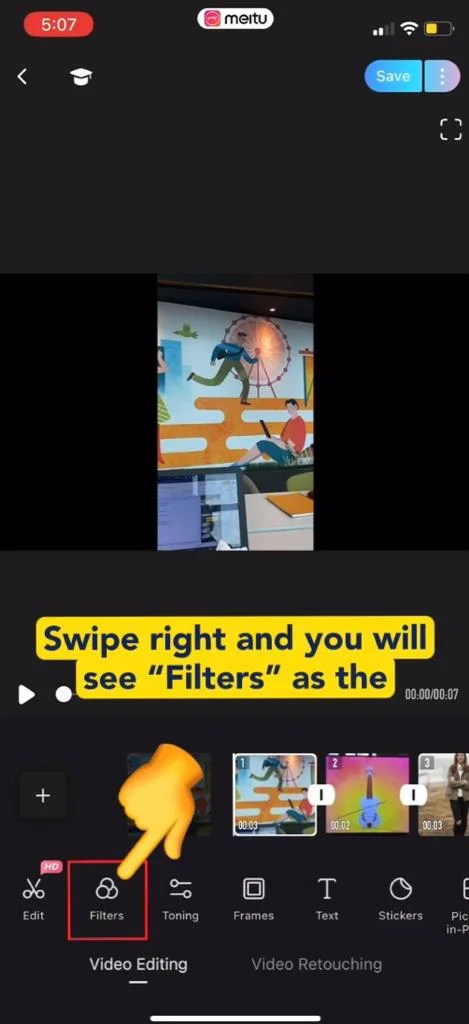
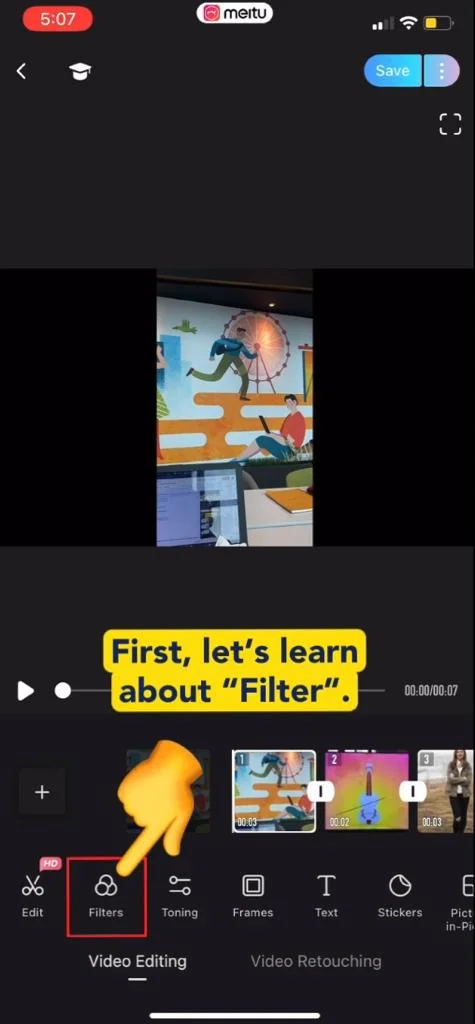
  1. Swipe right and you will see “Filters” as the second tool.
Image

  1. Filter adds a unique layer to help enhance the final look of an image/video.
Image

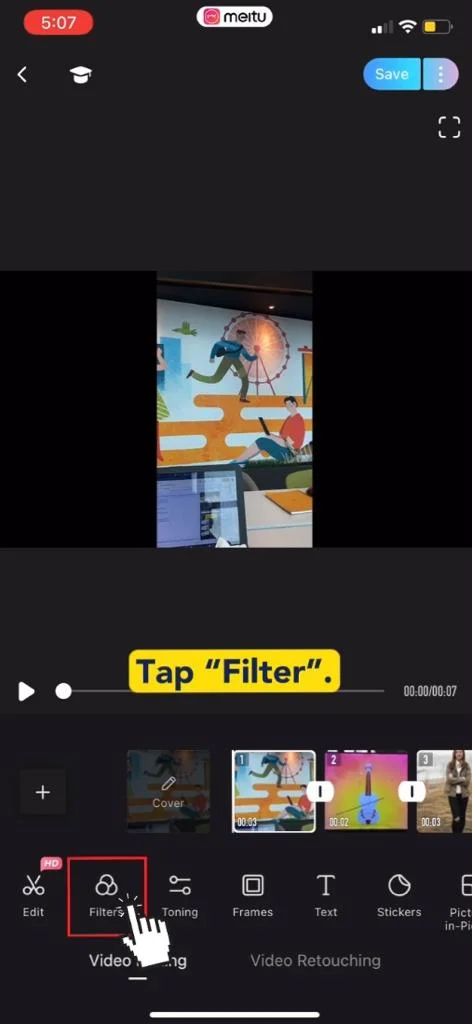
  1. Tap “Filters”.

Image

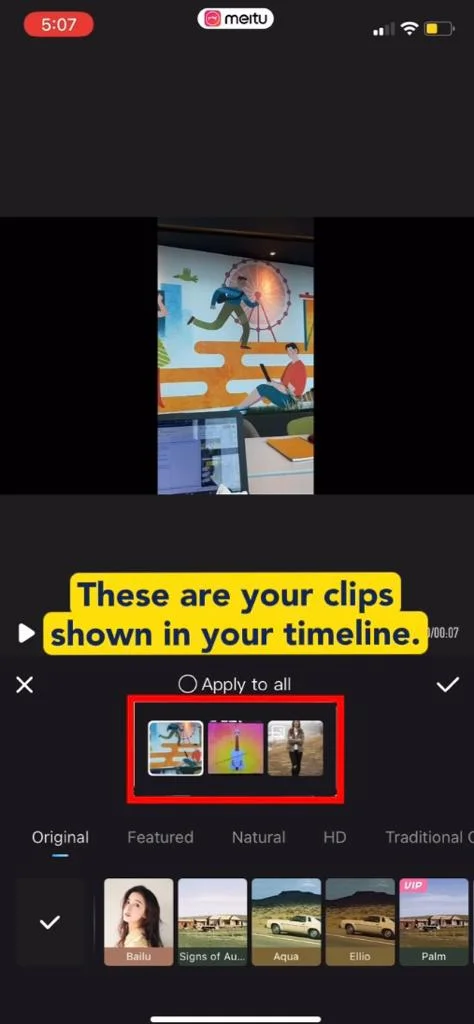
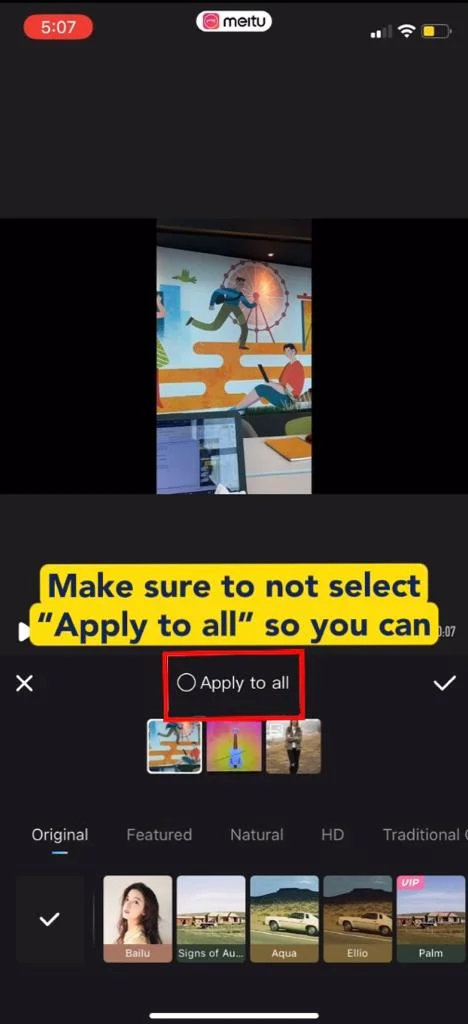
  1. These are your clips shown in your timeline.
Image

  1. Make sure to not select “apply to all” so you can have filters for each clip.
Image

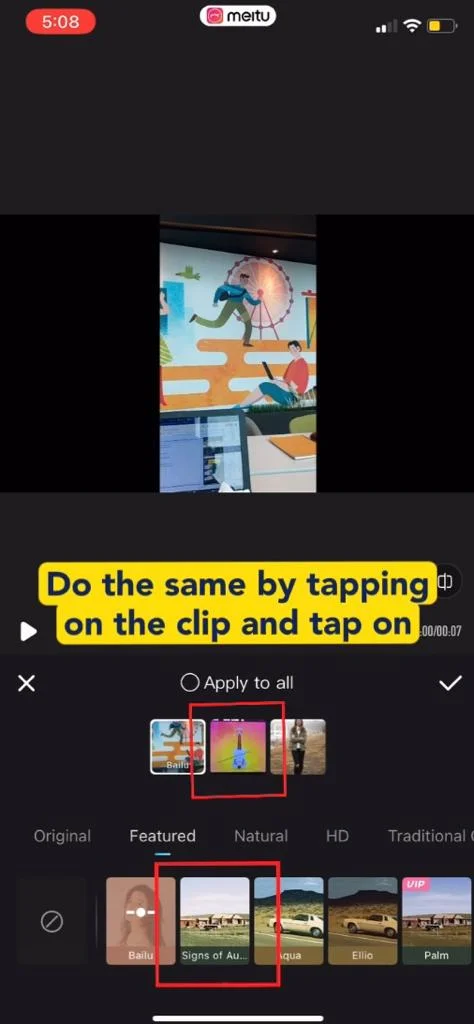
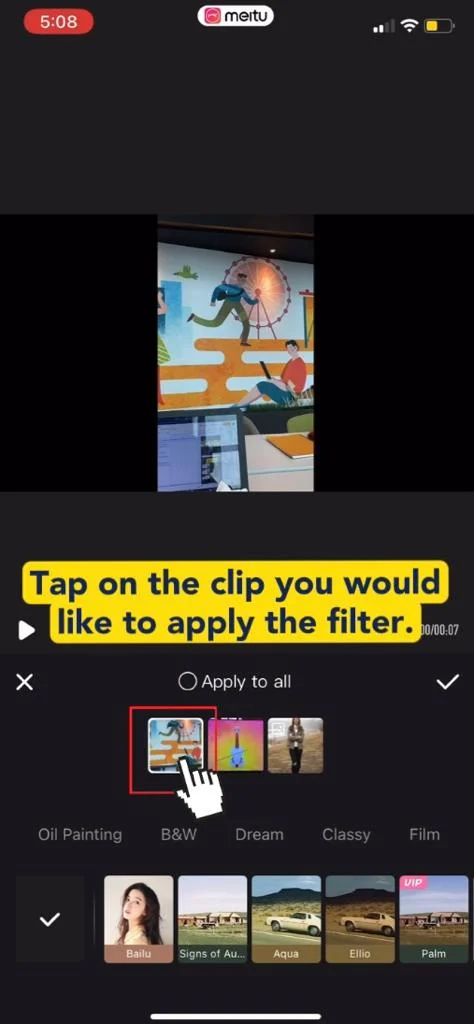
  1. Tap on the clip you would like to apply the filter.
Image

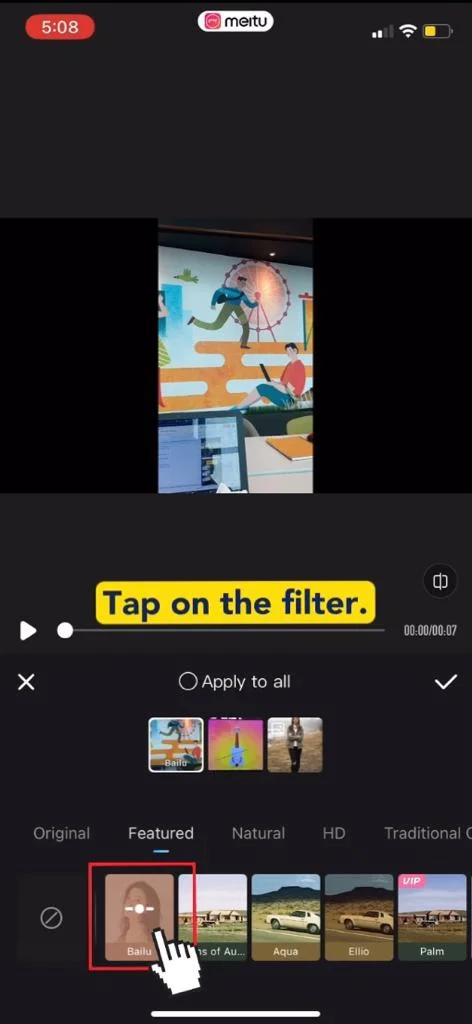
  1. Tap on the filter.

Image

  1. Do the same by tapping on the clip and tap on the filter if you want to apply for other clips too.
Image

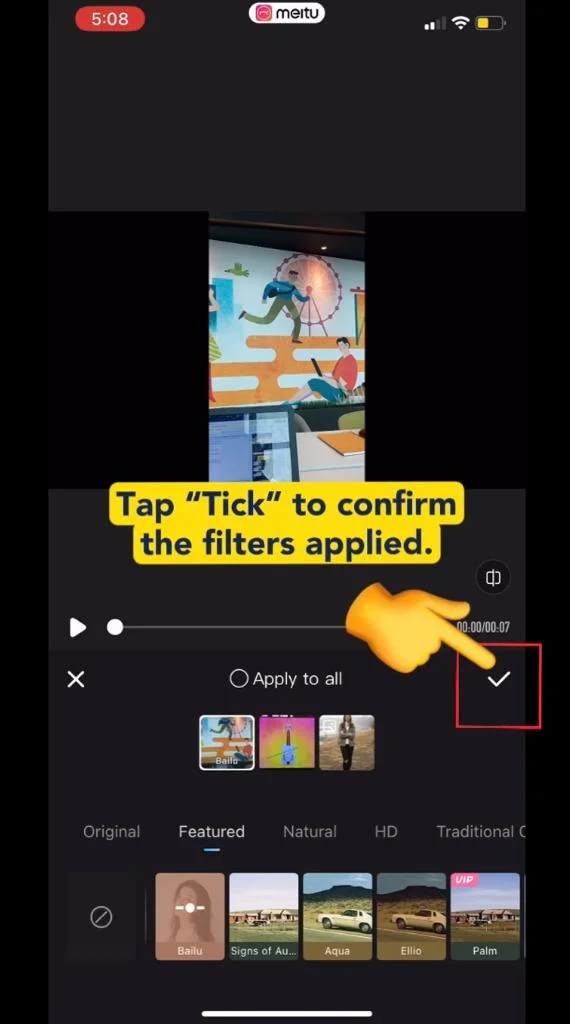
  1. Tap tick to confirm the filters applied.

2) Toning:
Image

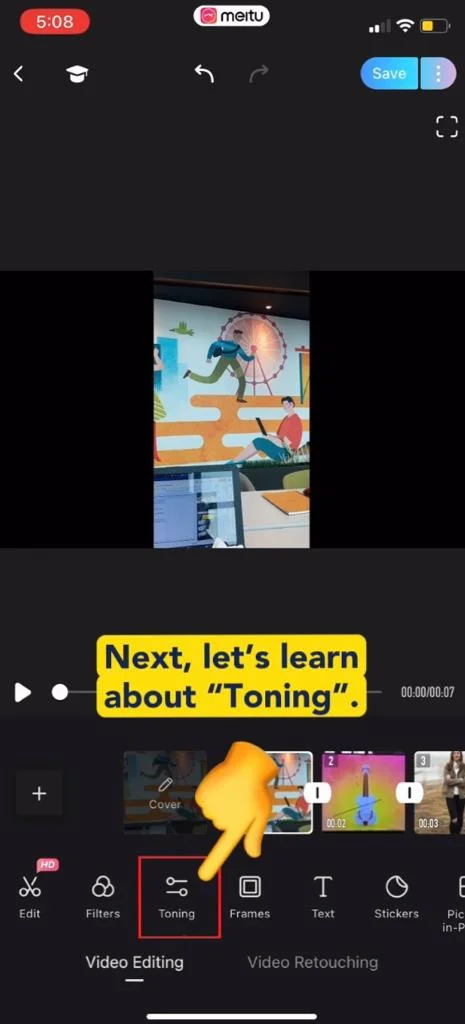
  1. Applying toning creates a cohesive and coherent story where it describes its particular mood/atmosphere.
Image

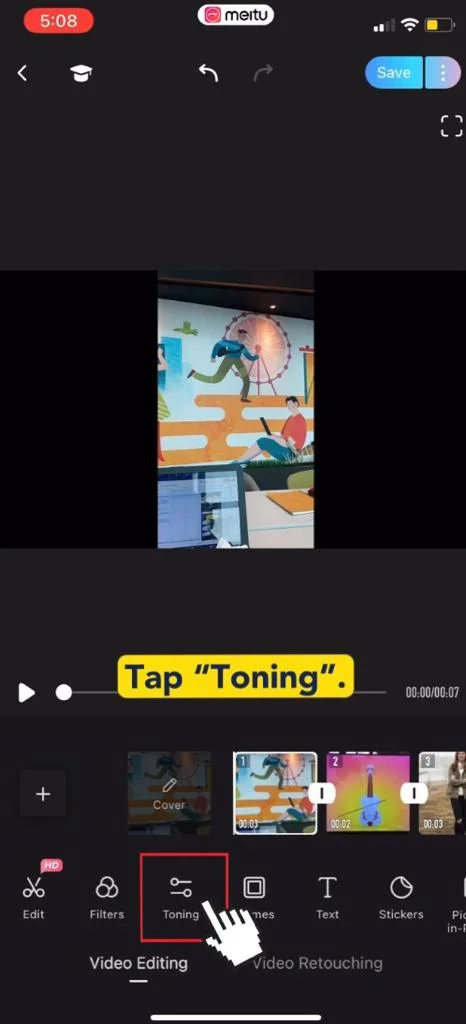
  1. Tap “Toning”.

Image

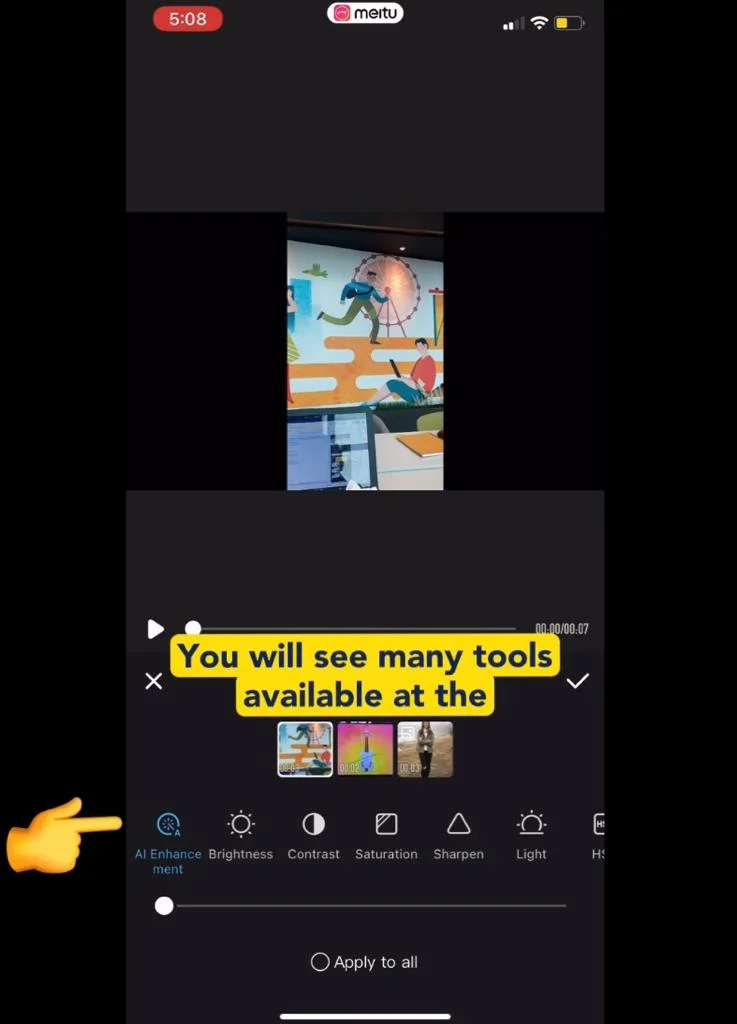
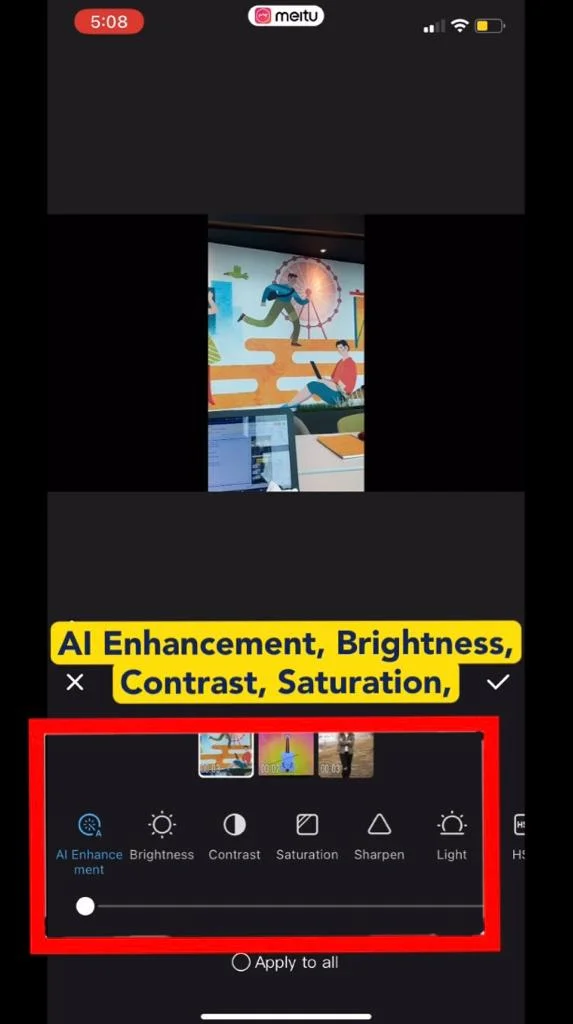
  1. You will see many tools available at the bottom under “Toning”.
Image

  1. We will learn these 6 tools: Ai enhancement, brightness, contrast, saturation, sharpen and light.

3) AI Enhancement:
Image

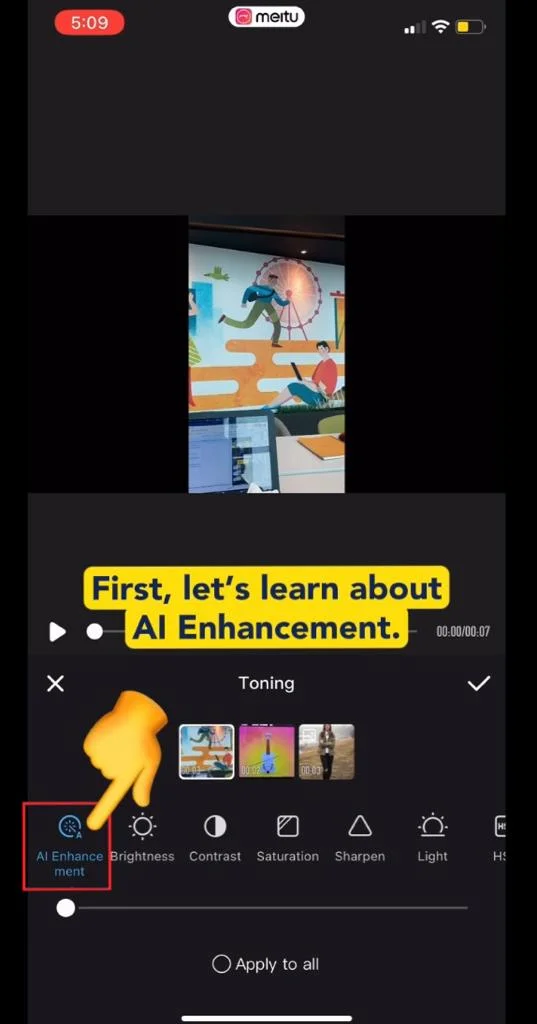
  1. AI Enhancement is able to detect the subject in your clip and enhance it.
Image

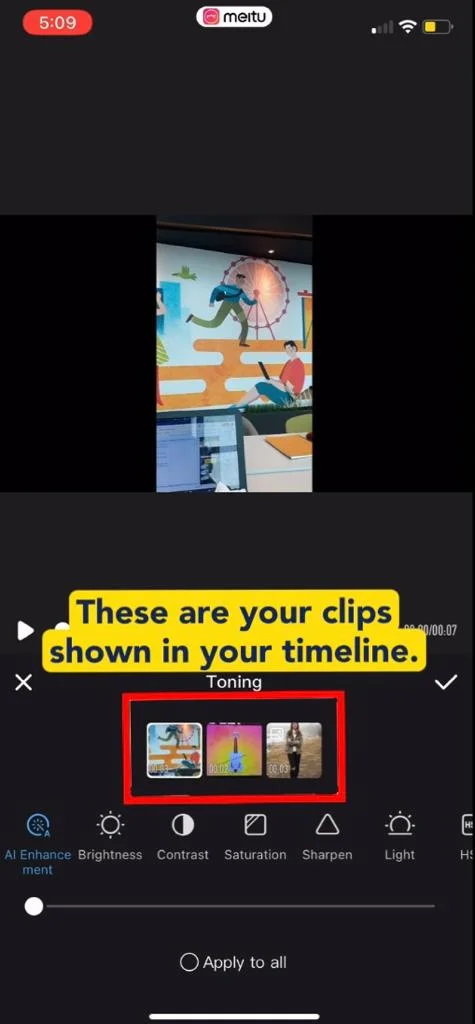
  1. These are your clips shown in your timeline.
Image

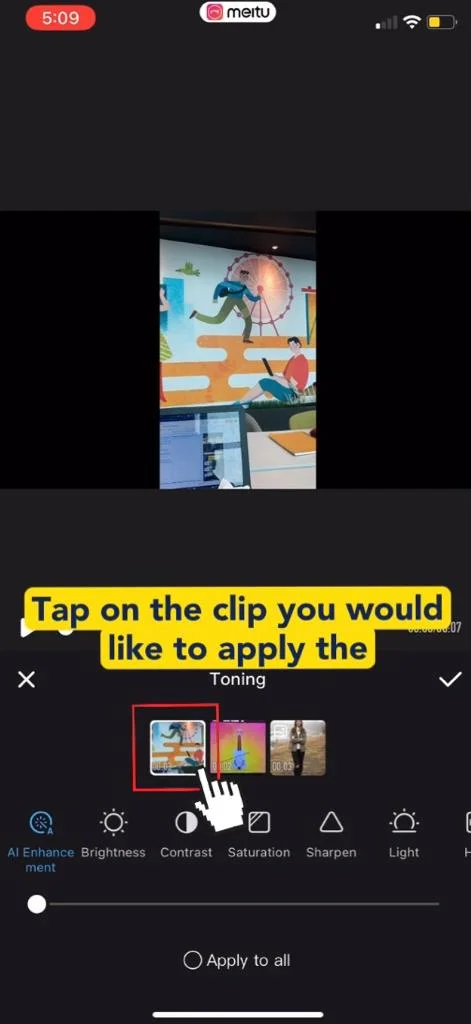
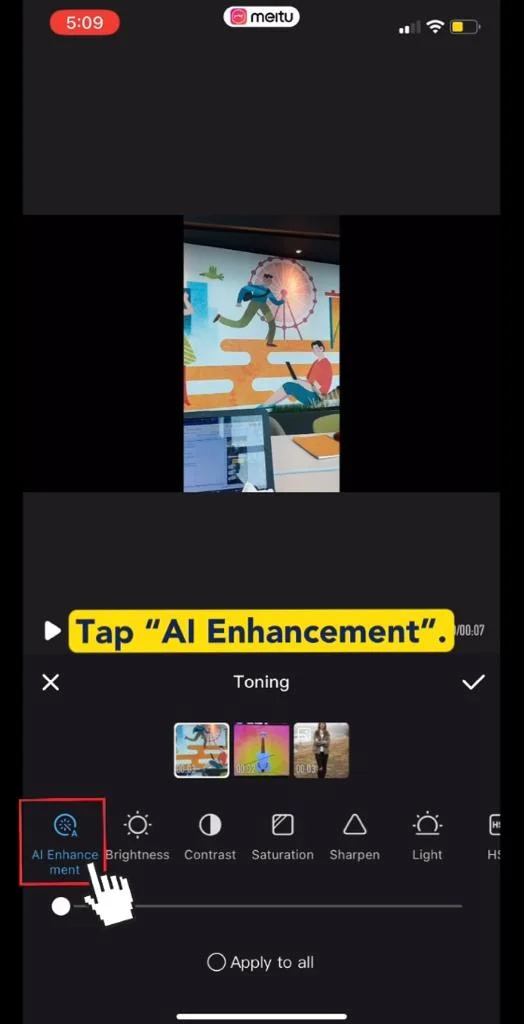
  1. Tap on the clip you would like to apply the AI enhancement.
Image

  1. Tap “AI Enhancement”.

Image

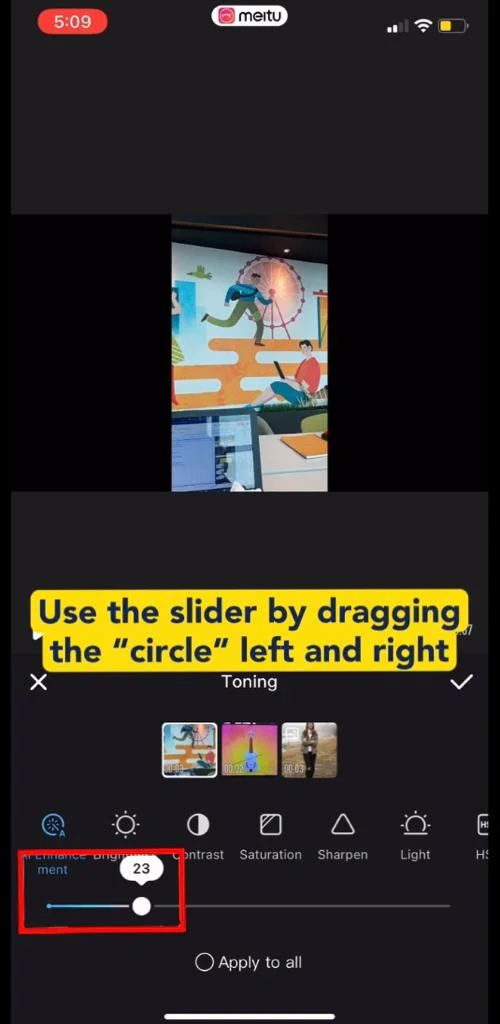
  1. Use the slider by dragging the “circle” left and right and see the improvements in your clip colours and brightness.

4) Brightness:

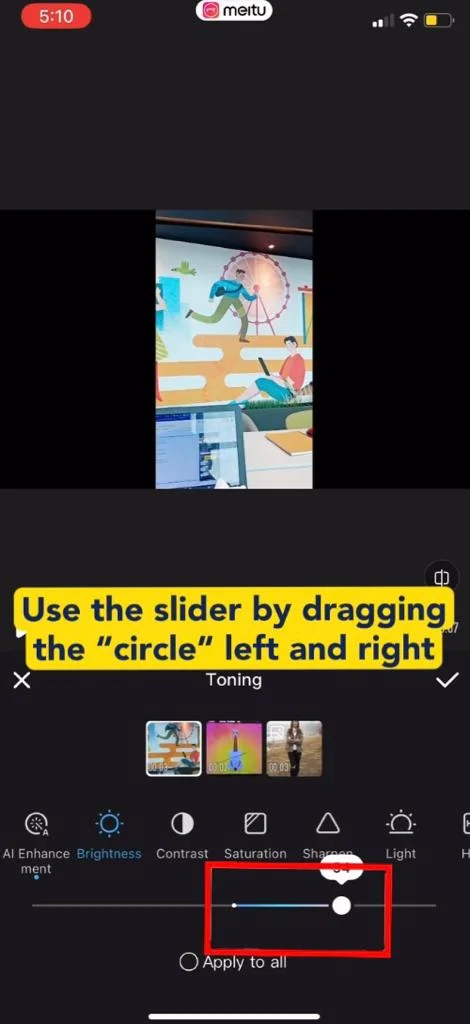
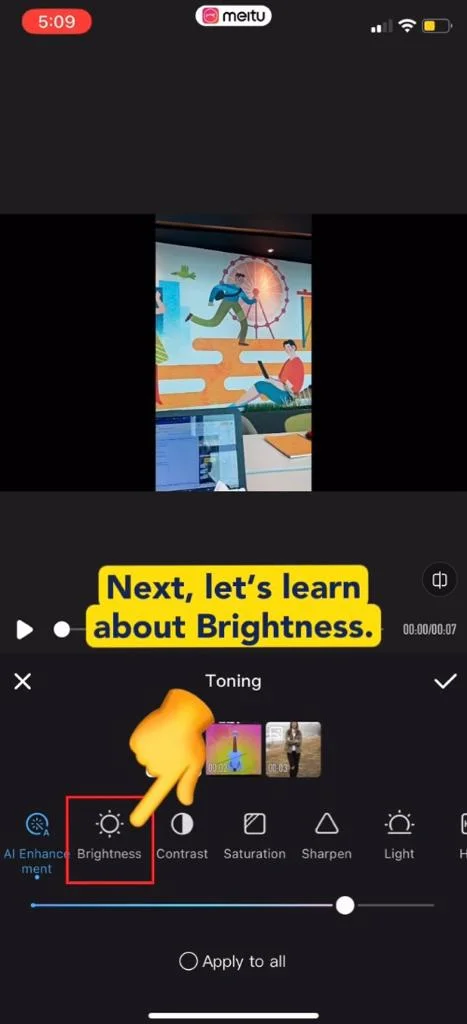
  1. Brightness increases the overall lightness of a clip. For example making dark colours lighter and light colours whiter.
Image

  1. Brightness increases the overall lightness of a clip. For example making dark colours lighter and light colours whiter.
1698580543128_filterToning22.jpeg

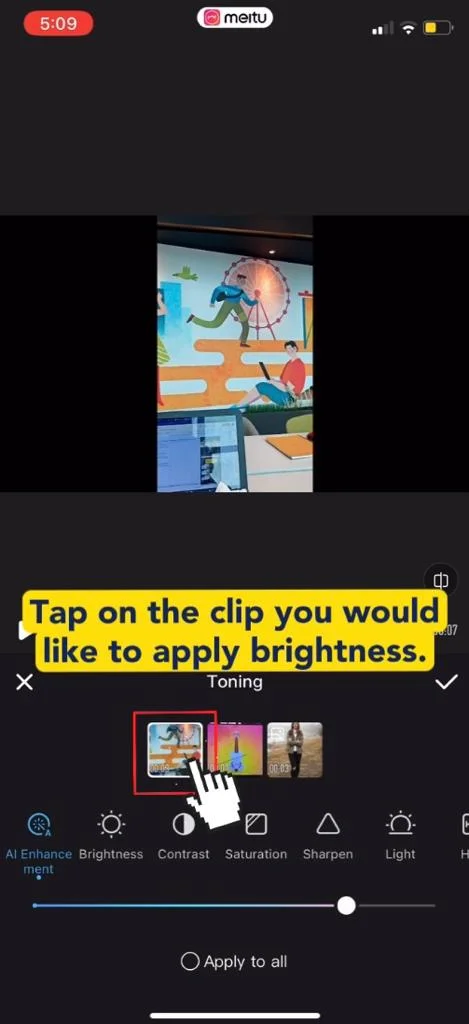
  1. Tap on the clip you would like to apply brightness.
1698580556689_filterToning23.jpeg

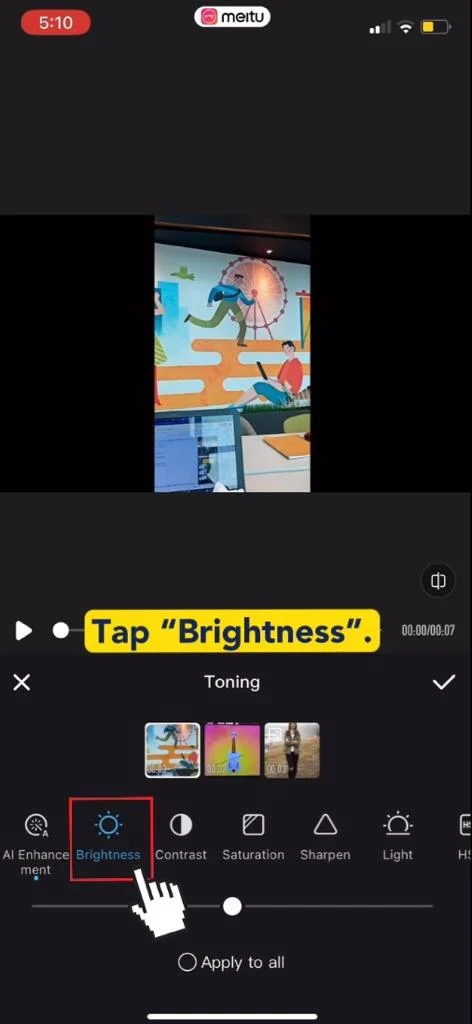
  1. Tap “Brightness”.

1698580566115_filterToning24.jpeg

  1. Use the slider by dragging the “circle” left and right and see the difference in your clip.

5) Contrast:
1698580578203_filterToning25.jpeg

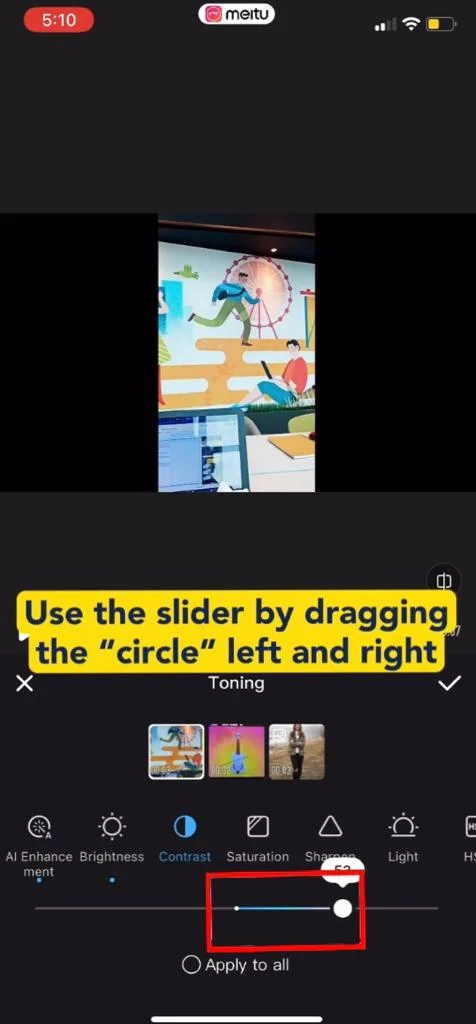
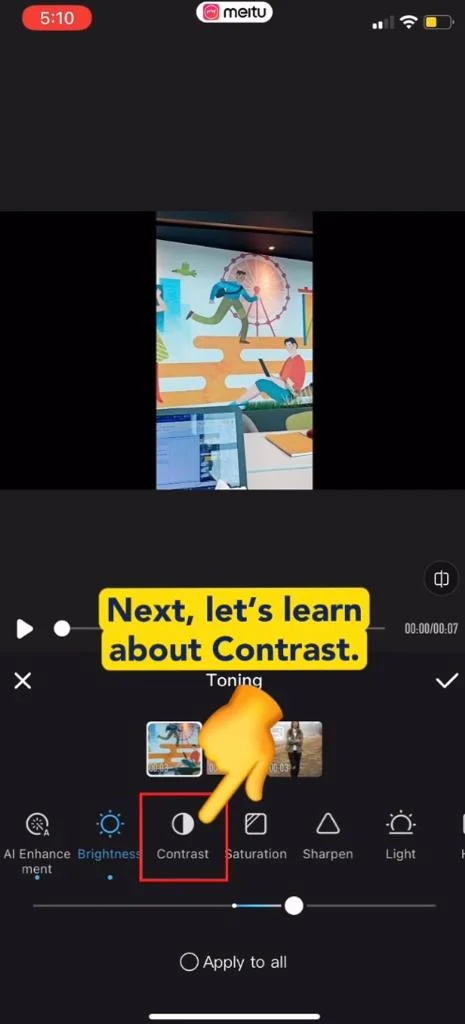
  1. Contrasts adjusts the difference between the darkest and lightest colours. High contrast is used in street photography and nature photography. Low contrast images tend to have a dreamy feeling.
1698580589721_filterToning26.jpeg

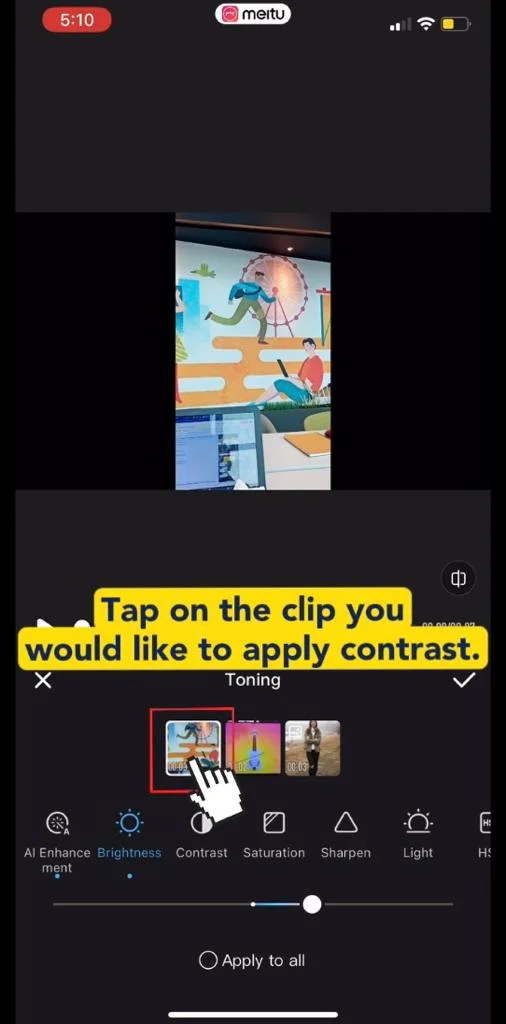
  1. Tap on the clip you would like to apply contrast.
1698580600632_filterToning27.jpeg

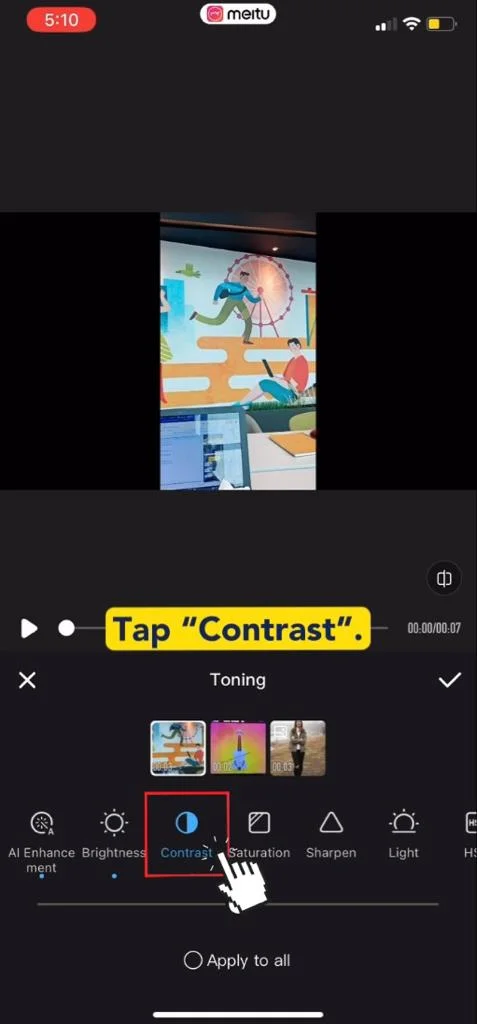
  1. Tap “Contrast”.

1698580610798_filterToning28.jpeg

  1. Use the slider by dragging the “circle” left and right and see the difference in your clip.

6) Saturation:
1698580620973_filterToning29.jpeg

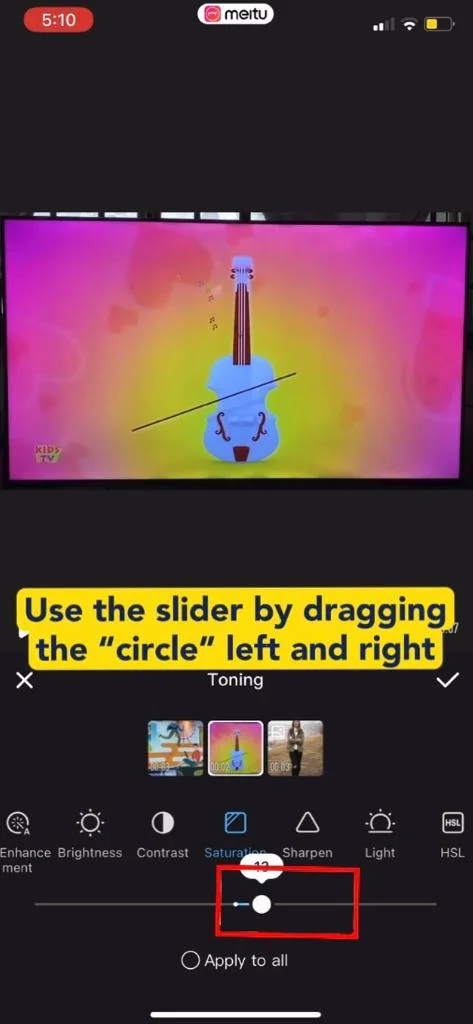
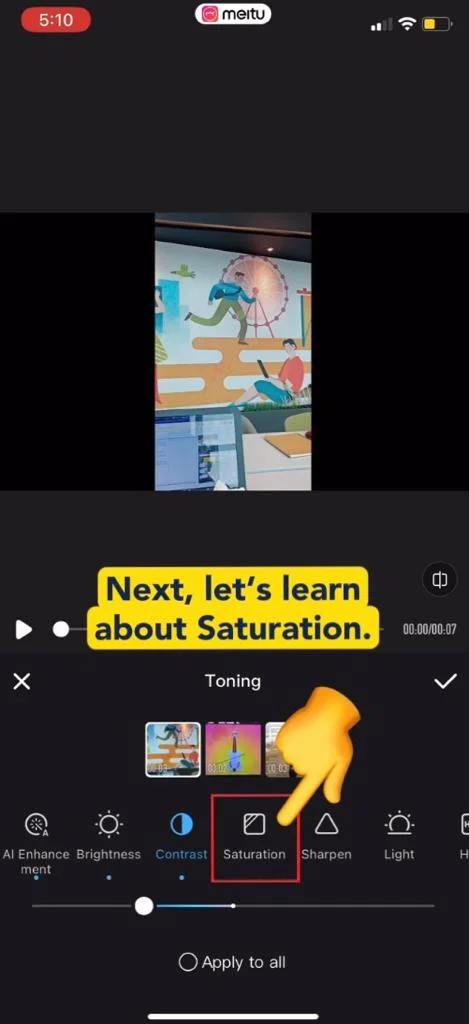
  1. The level of saturation in an image can have the effect of making the image feel more muted or vibrant. High saturation make the clip more vivid and alive while low saturation makes the clip look dull.
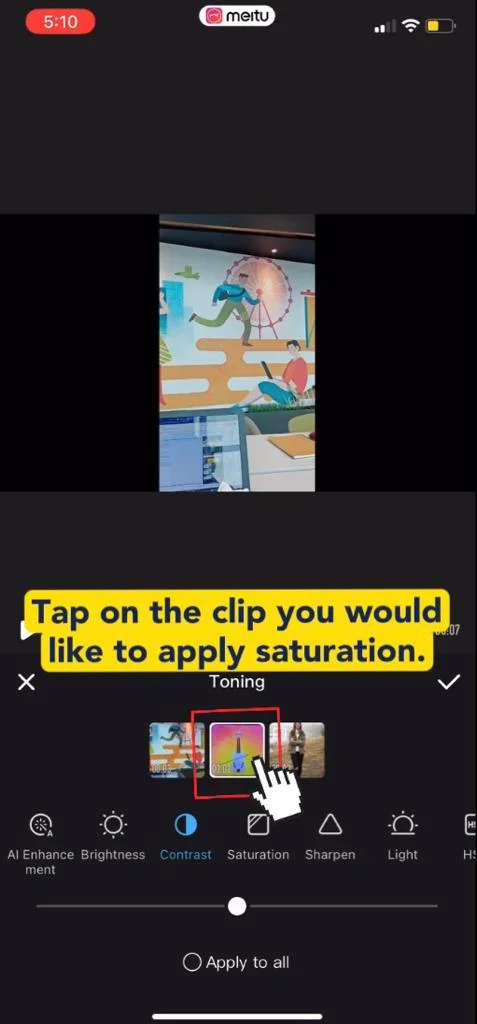
1698580635438_filterToning30.jpeg

  1. Tap on the clip you would like to apply saturation.
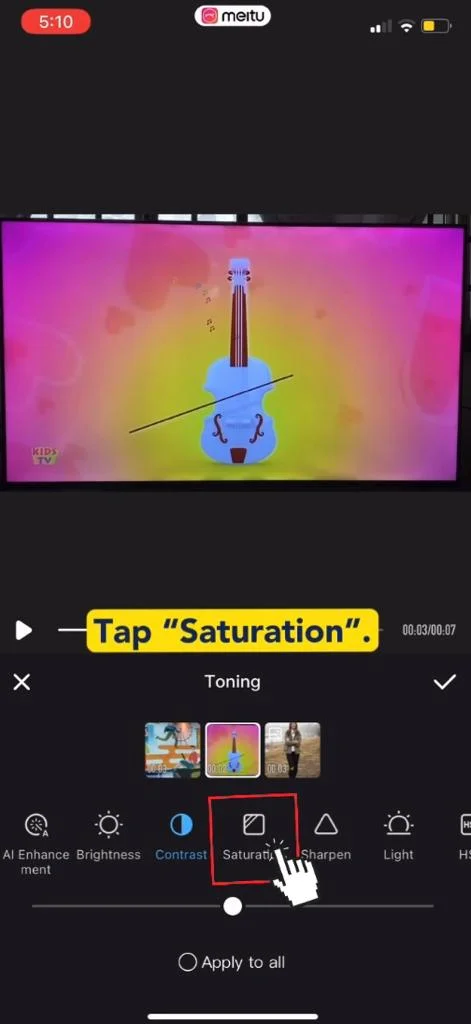
1698580645491_filterToning31.jpeg

  1. Tap “Saturation”.

1698580656590_filterToning32.jpeg

  1. Use the slider by dragging the “circle” left and right and see the difference in your clip.

7) Sharpen:
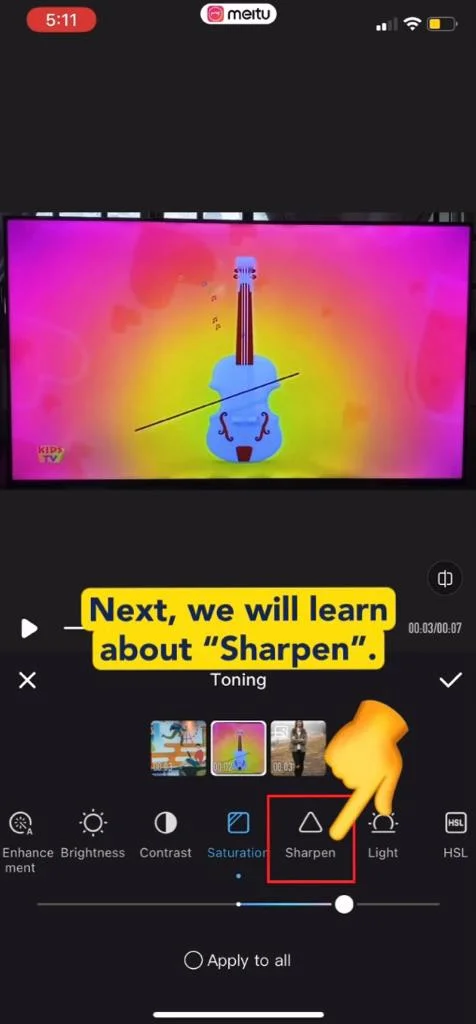
1698580666628_filterToning33.jpeg

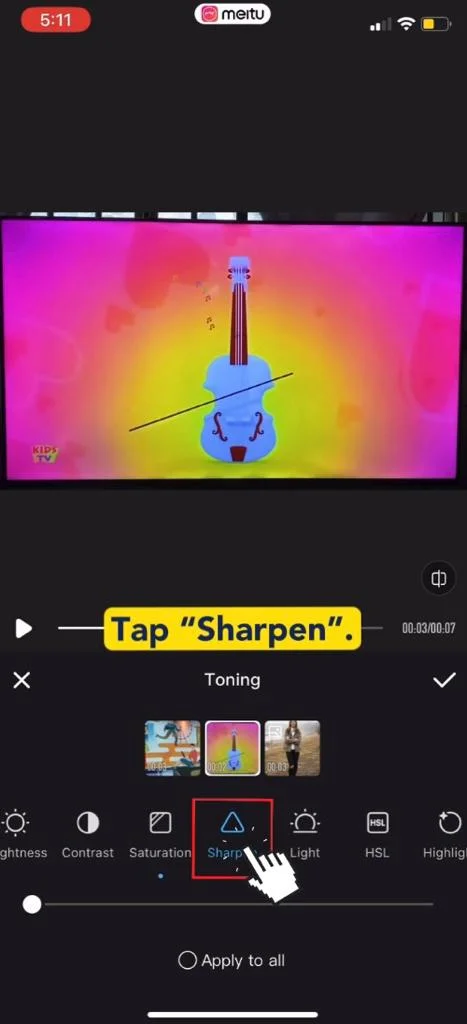
  1. Sharpen focuses soft edges in a clip to increase its clarity or focus and produces sharper image. Over sharpening will make the clip look grainy.
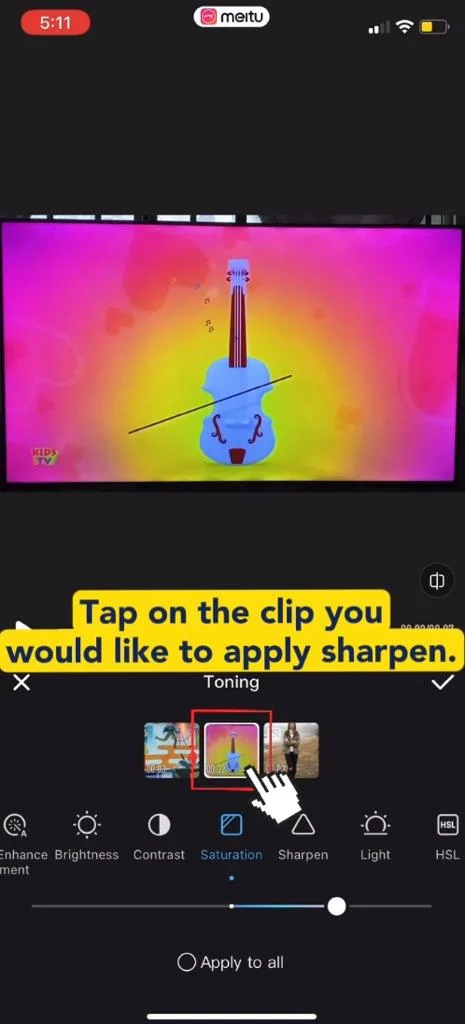
1698580677265_filterToning34.jpeg

  1. Tap on the clip you would like to apply sharpen.
1698580687378_filterToning35.jpeg

  1. Tap “Sharpen”.

1698580706202_filterToning36.jpeg

  1. Use the slider by dragging the “circle” left and right and see the difference in your clip.

8) Light:
1698580720368_filterToning37.jpeg

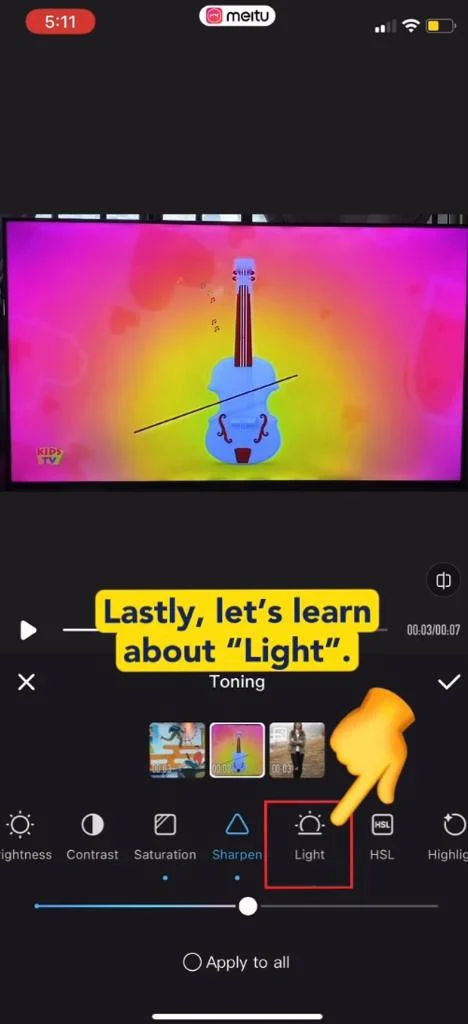
  1. It is necessary to control and manipulate light correctly as it allows you to set the mood for the video.
1698580730850_filterToning38.jpeg

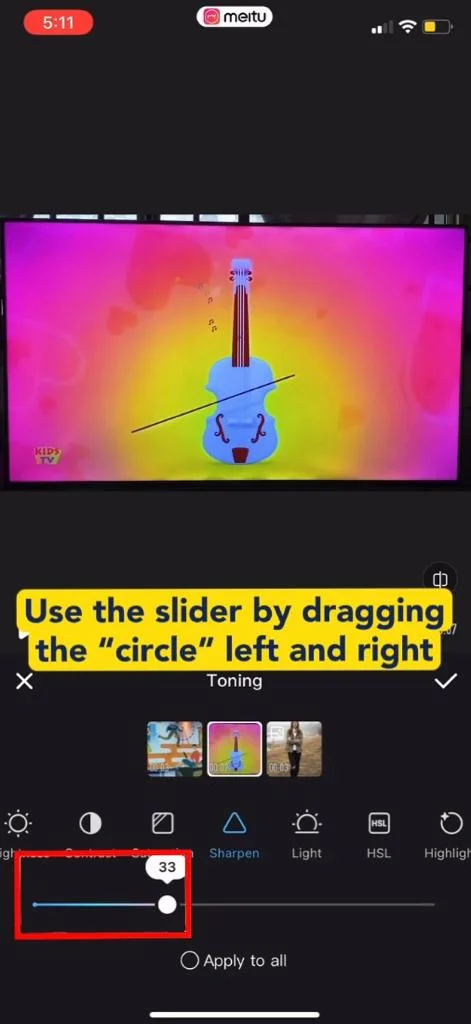
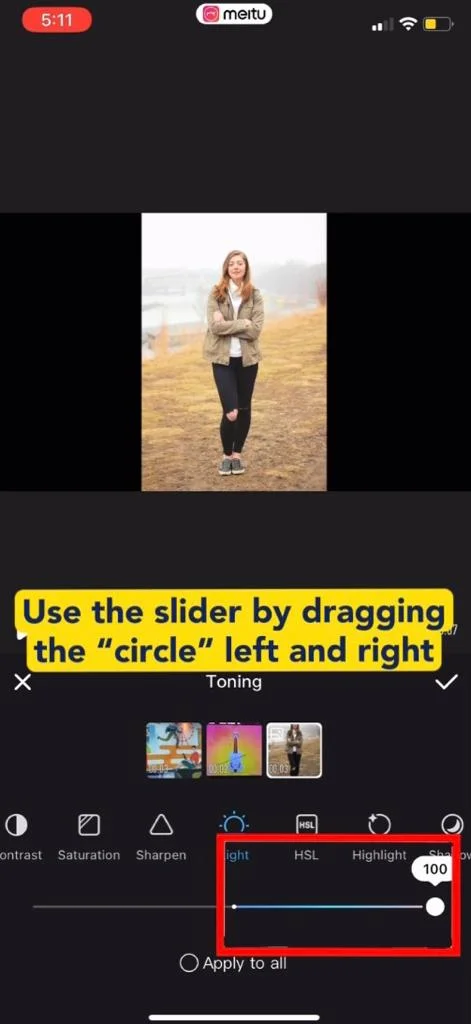
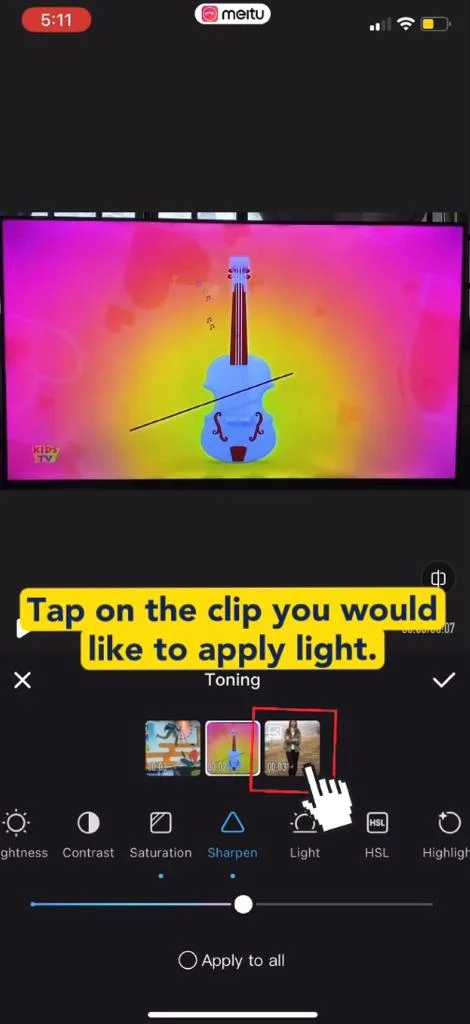
  1. Tap on the clip you would like to apply light.
1698580749968_filterToning39.jpeg

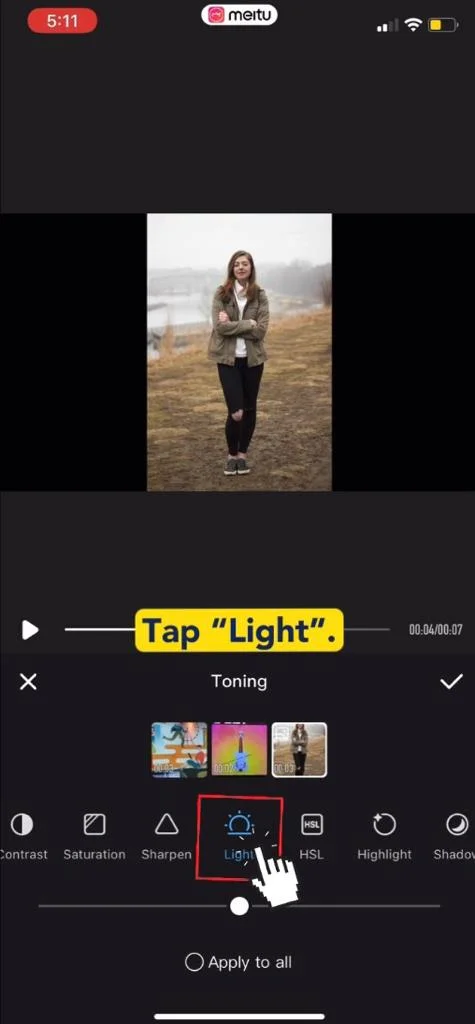
  1. Tap “Light”.

1698580761274_filterToning40.jpeg

  1. Use the slider by dragging the “circle” left and right and see the difference in your clip.
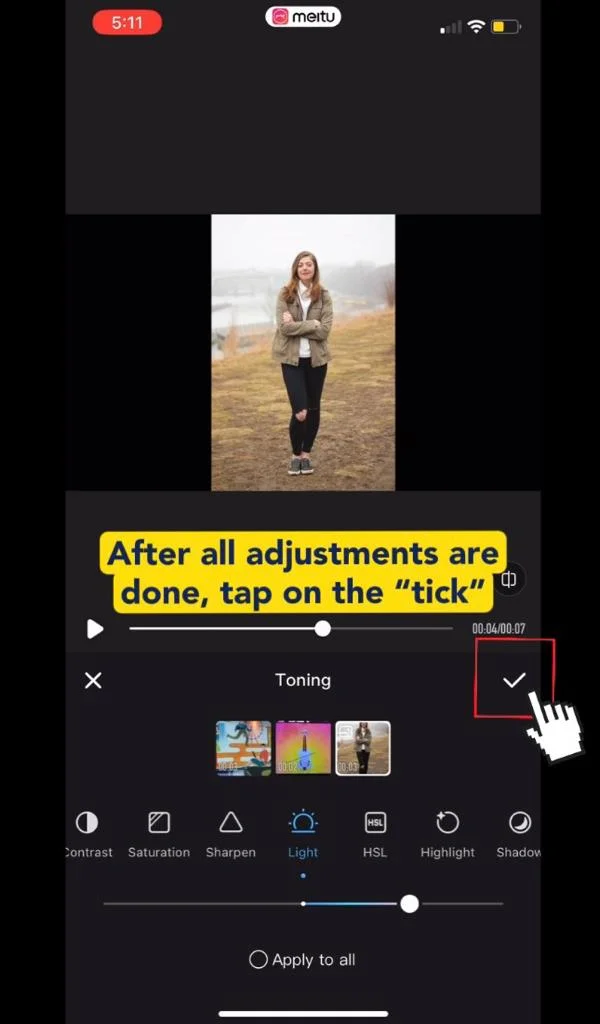
1698580772772_filterToning41.jpeg

  1. After all adjustments are done, tap on the “tick” to confirm.
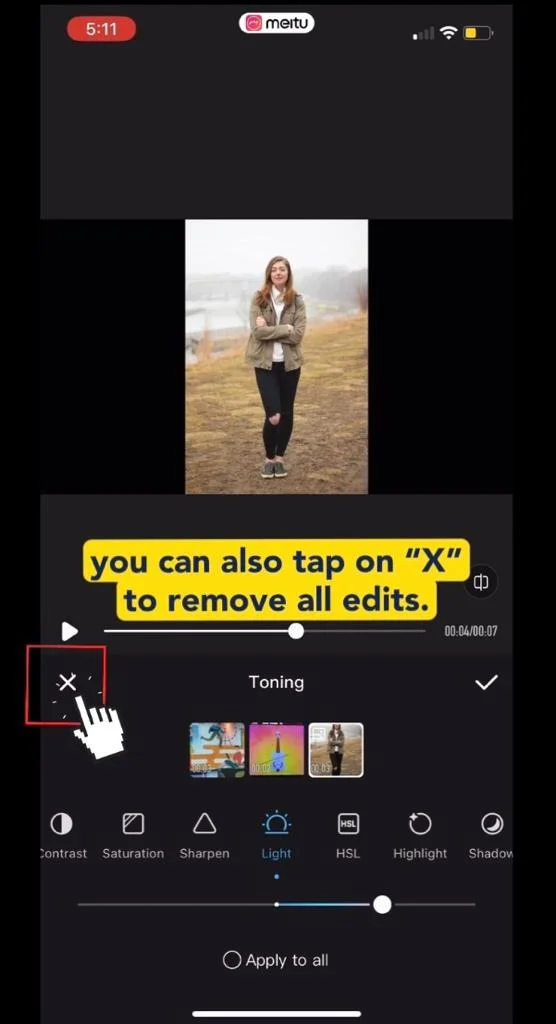
1698580782108_filterToning42.jpeg

  1. If you are not satisfied with edits, you can also tap on “X” to remove all edits.
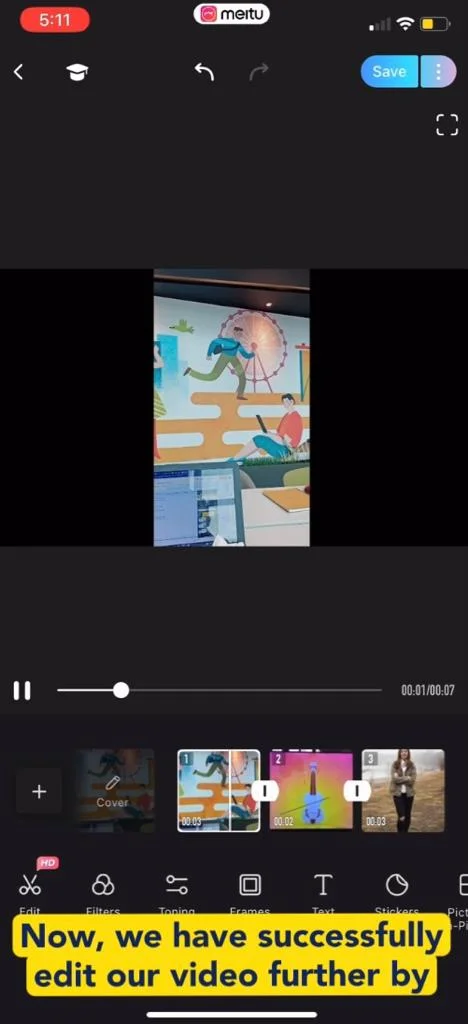
1698580794749_filterToning43.jpeg

  1. Now, we have successfully edit our video further by applying filters and toning in Meitu.

Video Tutorial

[youtube]

Related Posts

Using Text Styles In WhatsApp

Using Text Styles In WhatsApp

Post Text-to-Speech Videos In TikTok

Post Text-to-Speech Videos In TikTok

Good food around Bugis recommended by XIOHOO

Good food around Bugis recommended by XIOHOO

How To Collect Reward Points From Your Yuu App

How To Collect Reward Points From Your Yuu App

Behind the Mission: How XIOHOO Bridges the Digital Divide for Seniors and Children Across Singapore

Behind the Mission: How XIOHOO Bridges the Digital Divide for Seniors and Children Across Singapore

Affordable Tech: The Complete Guide to IMDA's Mobile Access for Seniors (MAS) Scheme and How to Qualify

Affordable Tech: The Complete Guide to IMDA's Mobile Access for Seniors (MAS) Scheme and How to Qualify

Beyond Block Coding: Why Generative AI is the Next Essential Skill for Your Child (and How to Start in Singapore)

Beyond Block Coding: Why Generative AI is the Next Essential Skill for Your Child (and How to Start in Singapore)

How To Send Messages (Chat) In Zoom Meeting

How To Send Messages (Chat) In Zoom Meeting

A Difficult Conversation: How Seniors in Singapore Feel About Nursing Homes and Alternative Care Options

A Difficult Conversation: How Seniors in Singapore Feel About Nursing Homes and Alternative Care Options

Meitu: Edit Tool And Video Sequence

Meitu: Edit Tool And Video Sequence

Block Unknown Incoming Calls On Android Phones

Block Unknown Incoming Calls On Android Phones

XIOHOO, recognised as Company of Good by NVPC in 2025

XIOHOO, recognised as Company of Good by NVPC in 2025

Pay Less When Ordering From Grab App Now

Pay Less When Ordering From Grab App Now

Get Discounts With Vouchers From Online Shops (Shopee)

Get Discounts With Vouchers From Online Shops (Shopee)

AI Jobs of the Future: How to Transition and Thrive in Singapore’s Digital Economy

AI Jobs of the Future: How to Transition and Thrive in Singapore’s Digital Economy

Is That Really Them? How to Outsmart AI Deepfake Scams in Singapore (2026 Guide)

Is That Really Them? How to Outsmart AI Deepfake Scams in Singapore (2026 Guide)

How To Check Singtel Mobile Data Usage

How To Check Singtel Mobile Data Usage

Benefits of SkillsFuture Courses for Seniors

Benefits of SkillsFuture Courses for Seniors

Stop Scams Before They Start: Your Guide to PayNow Safety and Digital Banking Courses in Singapore

Stop Scams Before They Start: Your Guide to PayNow Safety and Digital Banking Courses in Singapore

Mastering Your Smartphone & Staying Connected: Your Guide to SkillsFuture Courses for Seniors in Singapore (And Maximising SG60 Vouchers)

Mastering Your Smartphone & Staying Connected: Your Guide to SkillsFuture Courses for Seniors in Singapore (And Maximising SG60 Vouchers)

Sharing Data (Hotspot) On Android Phoneotspot) On Android Phone

Sharing Data (Hotspot) On Android Phoneotspot) On Android Phone

Dim Sum Promotion At All Peach Garden Outlets Singapore

Dim Sum Promotion At All Peach Garden Outlets Singapore

Create Fun Animations (GIFs) Using Google Photos!

Create Fun Animations (GIFs) Using Google Photos!

Useful Features In TripAdvisor

Useful Features In TripAdvisor

Safe & Simple: A Senior's Guide to Password Security and Digital Independence

Safe & Simple: A Senior's Guide to Password Security and Digital Independence

Give Back, Stay Young: The Best Senior Volunteer Opportunities in Singapore for 2026

Give Back, Stay Young: The Best Senior Volunteer Opportunities in Singapore for 2026

Mastering Safe Digital Banking in Singapore: A Senior-Friendly Guide to Security and Convenience

Mastering Safe Digital Banking in Singapore: A Senior-Friendly Guide to Security and Convenience

Empowering Singapore's Silver Generation: A Comprehensive Guide to Senior Digital Literacy and Beyond

Empowering Singapore's Silver Generation: A Comprehensive Guide to Senior Digital Literacy and Beyond

How To Save Your Email Messages As Starred (Favorite)

How To Save Your Email Messages As Starred (Favorite)

Planning Peace of Mind: A Guide to Free Will Writing for Seniors in Singapore

Planning Peace of Mind: A Guide to Free Will Writing for Seniors in Singapore

Supporting Healthier SG: Why Digital Literacy is Your Parent's Best Health Tool in 2026

Supporting Healthier SG: Why Digital Literacy is Your Parent's Best Health Tool in 2026

Get Discounts For Your Food Using FavePay!

Get Discounts For Your Food Using FavePay!